How To - Navigate your Journey To Hope Course in the App
Created by Tate Hammonds, Modified on Thu, 26 Feb at 5:02 PM by Tate Hammonds
How to Navigate your Journey To Hope Course in the App
If you're a Journey to Hope member, this guide will walk you through how to log into the app, access your course modules, and navigate your lessons with ease. You’ll learn how to find videos, download lesson materials, mark modules complete, and book coaching calls. By the end, you’ll be able to confidently move through your program and access all available resources.
Before You Begin
Download the Journey to Hope app on your mobile device
Have your Unchained Leader member account email and password ready
Ensure you have a stable internet connection
Instructional Video:
Step-by-Step Instructions
Step 1: Log Into the App
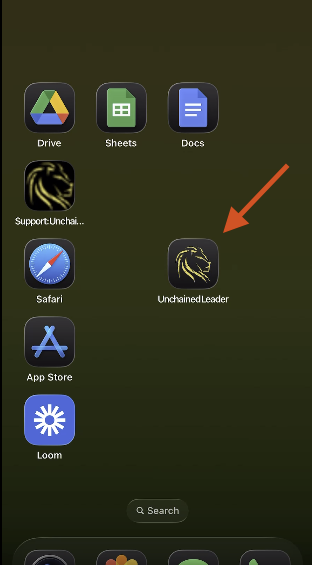
Open the app on your phone
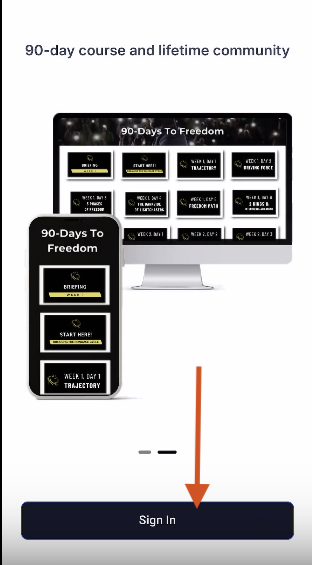
Tap the Sign In button
Enter the email associated with your Unchained Leader member account
Enter your password and tap Sign In
Agree to any prompted terms and conditions
Step 2: Navigate to Your Courses
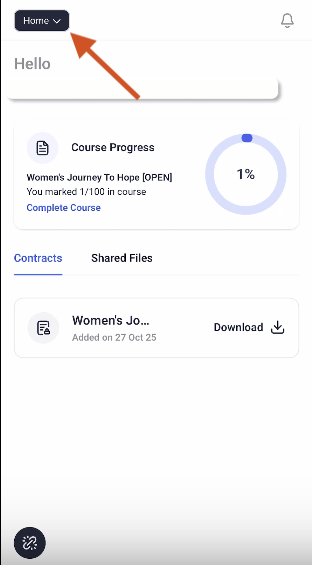
Tap Home at the top of the screen
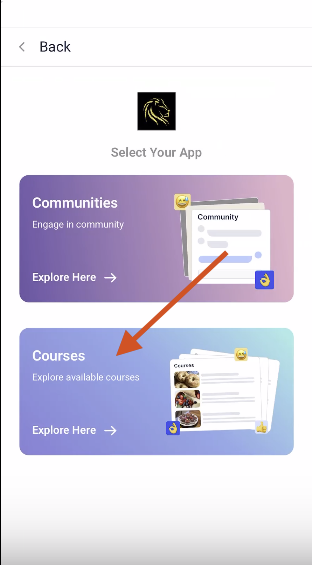
Select Courses
(Note: The Communities section is not active yet, so you’ll use Courses.)
Click on your course to open it
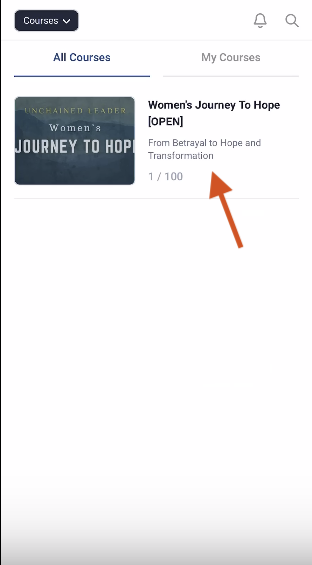
Step 3: Open the Course Syllabus
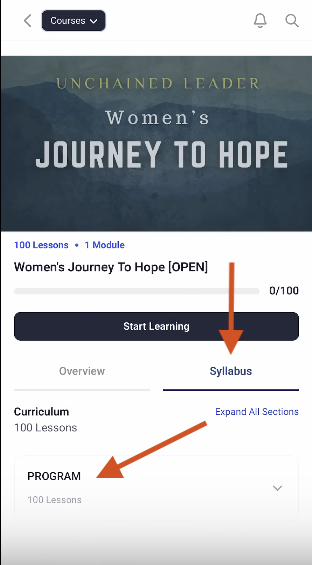
Once inside the course, locate the tabs at the top
Tap Syllabus (next to Overview)
Click the Program drop-down arrow
Select any module or video lesson from the list
You’ll see sections like:
Orientation (Facebook group, coaching calendar, member support)
Getting Started (where your core journey begins)
Step 4: Start or Resume Learning
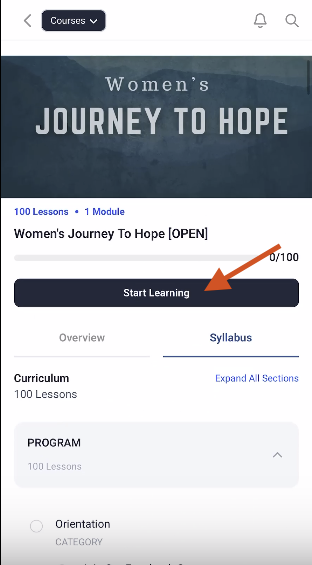
Tap Start Learning or Resume Learning
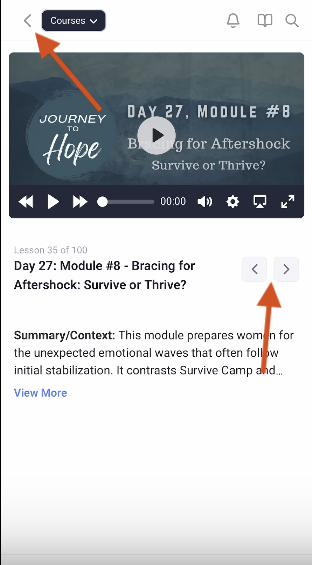
If the app opens a lesson you don’t want to watch:
Use the forward and backward arrows to switch videos
Or return to the Program drop-down to select another lesson
Step 5: Access Lesson Materials
Tap the blue View More button below the video
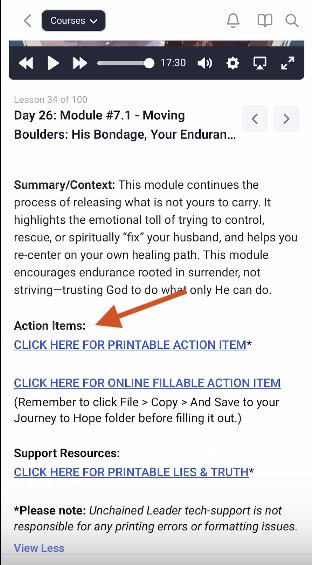
Expand the drop-down to find:
Action items (lesson assignments)
Printable resources
Relevant links and additional materials
Be sure to review and complete action steps before moving on.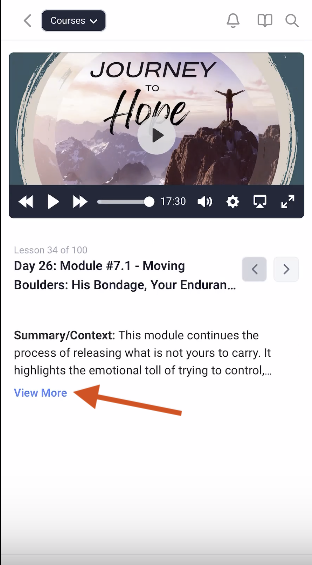
Step 6: Mark a Lesson as Complete
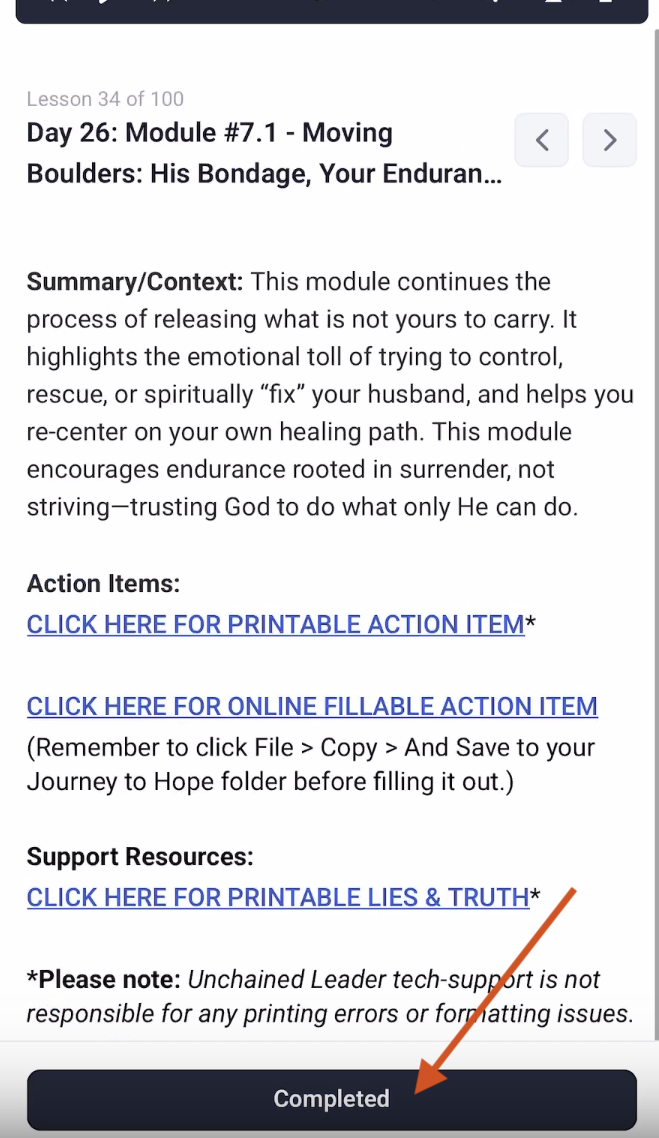
Scroll to the bottom of the video
Tap Mark as Complete
This ensures:
Your progress is saved
The app moves you to the next lesson when you resume
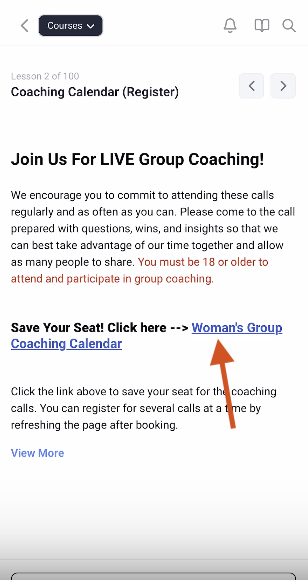
Step 7: Book a Coaching Call
In the Orientation section, select Coaching Calendar
Tap the link for the Women’s Group Coaching Calendar
Choose an available date and time
Click Next
Enter your name and details
Confirm your booking
You’ll receive a confirmation email with a Zoom link for your session.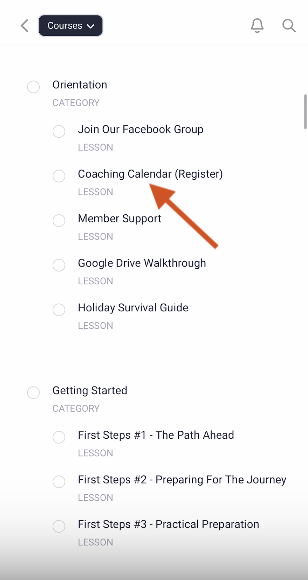
Step 8: Access Member Support and Resources
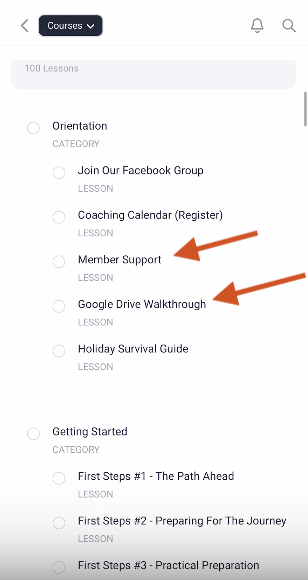
Go back to the Program drop-down menu
Select Member Support
Select Google Drive Walkthrough
Review instructions for completing lessons digitally
You’re All Set!
You now know how to:
Log into the Journey to Hope app
Access and navigate your course modules
Use the syllabus and program drop-down
View lesson assignments and resources
Mark lessons complete
Schedule a live coaching call
You’re ready to begin (or continue) your journey with confidence.
Still Stuck?
If you’ve followed these steps and are still having trouble, please reach out to our member support team.
You can send an email to the address below, or click on the link to go to our member support page and submit a support ticket.
Keywords to help you find this guide:
Journey to Hope app, Unchained Leader login, course modules, coaching calendar, mark lesson complete, member support, syllabus navigation
Was this article helpful?
That’s Great!
Thank you for your feedback
Sorry! We couldn't be helpful
Thank you for your feedback
Feedback sent
We appreciate your effort and will try to fix the article